RE+ 2026 · Nov 16–19 · Las Vegas

See what replacing your entire software stack looks like. Booth W15826.

Book a booth demo
Single Line Diagrams · Powerlily Pro

Solar, storage and service. One live electrical design.

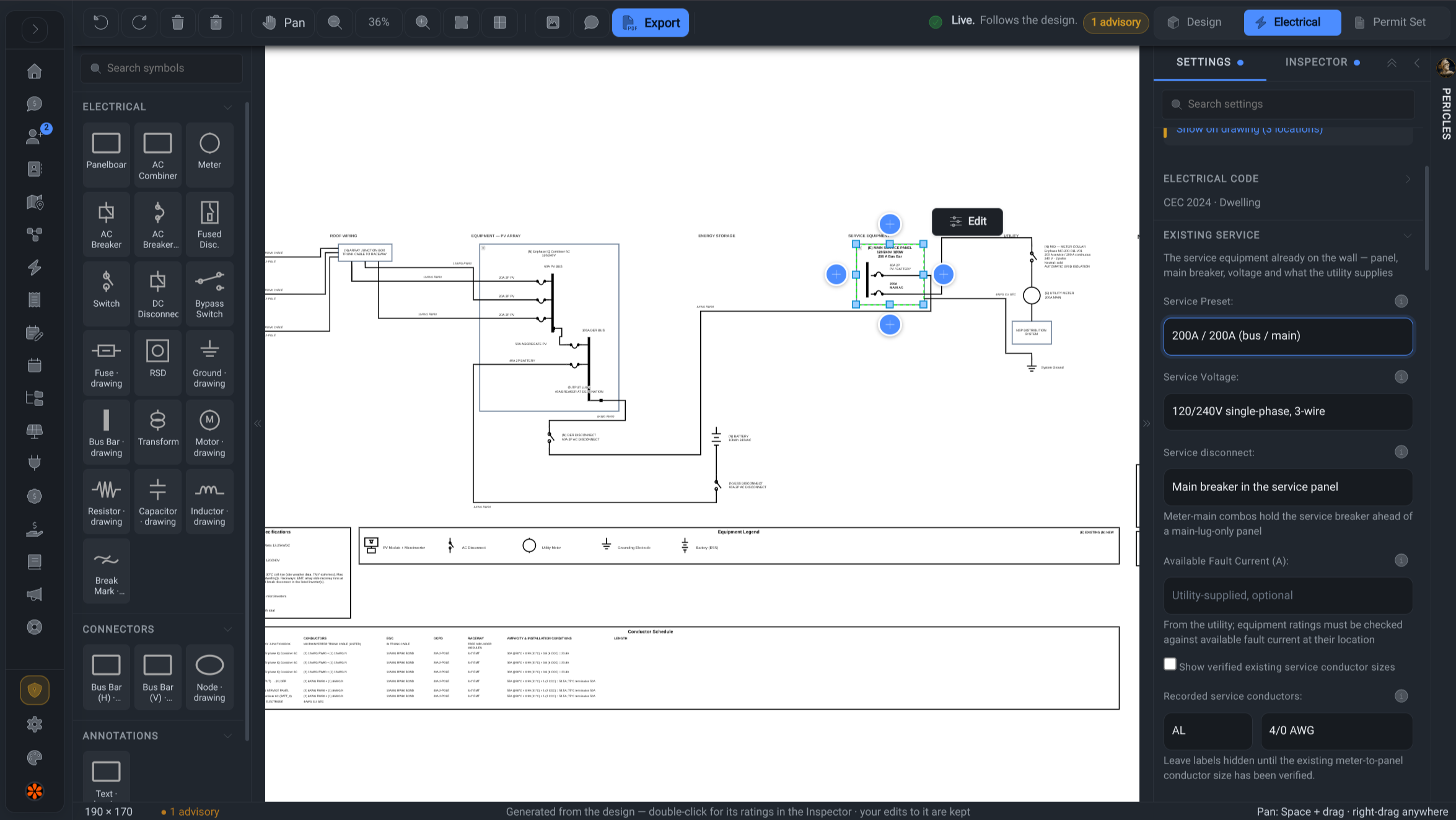
Build your single-line diagram from the same system you design and quote. Edit equipment and wiring, see electrical checks update as you work, and ask Pericles to explain findings and make changes beside you.

powerlily.com / sld
Powerlily single-line diagram editor with electrical symbols and service settings in dark mode
Design, check and issue

Electrical decisions you can see, test and explain.

The drawing, conductor schedule and electrical checks stay connected to the project. Work directly on equipment and circuits, explore a correction before applying it, and carry the reviewed design into the permit set.

01

Build the system

An electrical design that follows the project.

Start with the panels, inverters, strings and batteries already selected in the design. The SLD follows changes to that system while preserving your drawing edits and surfacing anything that needs review.

  1. 01.01

    Real strings, branches and equipment

    Carry string-inverter MPPT assignments, DC optimizers, microinverter branches and module counts into the electrical drawing, using the selected equipment's ratings.

  2. 01.02

    Solar and storage on the same drawing

    Represent AC-coupled batteries, DC-coupled stacks and hybrid inverters with their charging, discharge, disconnect and protection requirements.

  3. 01.03

    Whole-home and partial-home backup

    Choose the backup arrangement and supported isolation equipment: a standalone microgrid interconnection device or an eligible hybrid inverter or AC battery. Review the grid, backup-load and source connections together.

  4. 01.04

    Residential and commercial services

    Configure single-phase and three-phase services, check equipment voltage compatibility and phase loading, and include supported voltage-transformer arrangements.

  5. 01.05

    Buildings, combiners and feeders

    Keep multiple structures, AC combiners, disconnects and inter-building feeders visible in the path from the array to the service.

  6. 01.06

    Edit the actual connections

    Add downstream breakers, disconnects, panels or meters, enter their ratings, and connect or reconnect equipment on the canvas. Missing connections and unsupported arrangements appear in the live findings.

02

Wiring and checks

Specify the run. See what changes.

Select a wire, its callout or a conductor-schedule cell to inspect the same circuit. Wiring choices update the drawing, schedule and supported calculations together.

Findings beside the circuit See the affected equipment, inspect its settings and review the result of a correction.
  1. 02.01

    Wire and cable choices

    Choose supported conductor and cable profiles, material, and automatic, minimum or exact sizing. An undersized specified conductor stays visible with a finding so you can resolve the choice.

  2. 02.02

    Installation-aware sizing

    Account for ambient and termination temperatures, conductor grouping, bonding, raceway fill and supported wet, rooftop or buried installation conditions.

  3. 02.03

    Measured routes and voltage drop

    Enter physical run lengths and split a circuit into named sections when the wiring method changes. Voltage drop follows the measured sections; missing lengths remain visibly uncalculated.

  4. 02.04

    Project defaults and presets

    Reuse wiring choices with separate defaults for AC, PV DC and battery DC runs. Keep local exceptions and save project presets for repeated installation details.

  5. 02.05

    Project-specific NEC and CEC checks

    Review code-aware conductor, grounding and protection sizing alongside temperature-corrected string voltage, equipment limits and service checks. Findings expose the relevant code references and calculated values.

  6. 02.06

    Interconnection alternatives

    Review load-side and supply-side connections, subpanels, busbar rules and power control settings. Preview offered fixes such as a main-breaker derate or source-current limit and see which findings change.

  7. 02.07

    Find the issue on the drawing

    Live status separates violations, advisories and incomplete checks. Follow a finding to the affected equipment or circuit and inspect the values behind it.

  8. 02.08

    Know what has been checked

    Missing ratings, disconnected equipment and unsupported calculations remain visible as incomplete work. Blocking findings must be resolved before PDF export.

03

Work with Pericles

An assistant that can work on this design.

Pericles is docked beside the SLD with access to the current equipment, circuits, settings, selection and findings. Ask a question about the design in front of you, then work through the change together. Included with Powerlily Pro.

From explanation to an editable result Pericles shows what changed, how the findings responded and how to undo the edit.
  1. 03.01

    Ask about the current project

    Ask 'Why is export blocked?' or 'Show me the affected breaker.' Pericles can inspect the live design and bring the relevant element into view.

  2. 03.02

    Understand the rule and the options

    Pericles uses the electrical engine's findings, calculated limits and code references to explain an issue and discuss the available correction paths.

  3. 03.03

    Preview a change before it lands

    Pericles can try a proposed edit without changing the design, then report which findings it would clear, introduce or leave unresolved.

  4. 03.04

    Make the correction in place

    Ask Pericles to adjust a breaker, change wiring choices, reconnect equipment or restore a removed device. Changes use the same electrical checks as your own edits.

  5. 03.05

    Bring the supporting evidence

    Pericles can inspect the current drawing, look up company equipment and read its spec sheets. Share a PDF or image reference to discuss the details alongside the model.

  6. 03.06

    Keep control of each edit

    Applied changes arrive with a summary and Undo. Broader changes, such as switching jurisdiction, resetting overrides or restringing, ask for approval first. Local edits remain unsaved until you save the project.

04

Review and issue

Carry the reviewed design into the permit set.

Refine the drawing for the reviewer while keeping electrical values tied to the project. The same SLD and conductor information continue into the coordinated plan set.

One coordinated permit set Bring the electrical drawing together with site, roof and structural sheets in one editable package.
  1. 04.01

    Keep your layout and annotations

    Move equipment, route wires and position labels or notes. Layout edits survive design updates, and saved choices whose equipment has changed are retained for review.

  2. 04.02

    Schedules that match the wiring

    Electrical callouts and conductor schedules use the same circuit choices, including route sections. Add drawing notes while keeping calculated specifications connected to the model.

  3. 04.03

    Equipment, legend and title block

    Keep system specifications, equipment details, rapid-shutdown information and the drawing legend together with the project title block.

  4. 04.04

    Continue with Pericles in the plan set

    Review the permit readiness list, discuss missing project details and approve proposed setup changes. Electrical changes carry into the SLD sheet when the plan set is synced.

  5. 04.05

    Standalone drawing or coordinated PDF

    Export the SLD on its own, or include it alongside site, roof, structural, notes and placard sheets in the complete permit package.

    Plan set workflow

Design the system. Work through the details with Pericles.

Bring live electrical drawings, reviewable checks and Pericles-assisted edits into the same project with Powerlily Pro.

Pericles
Pericles
Powerlily assistant
Replies instantly. Leave your email anytime and a human follows up.